
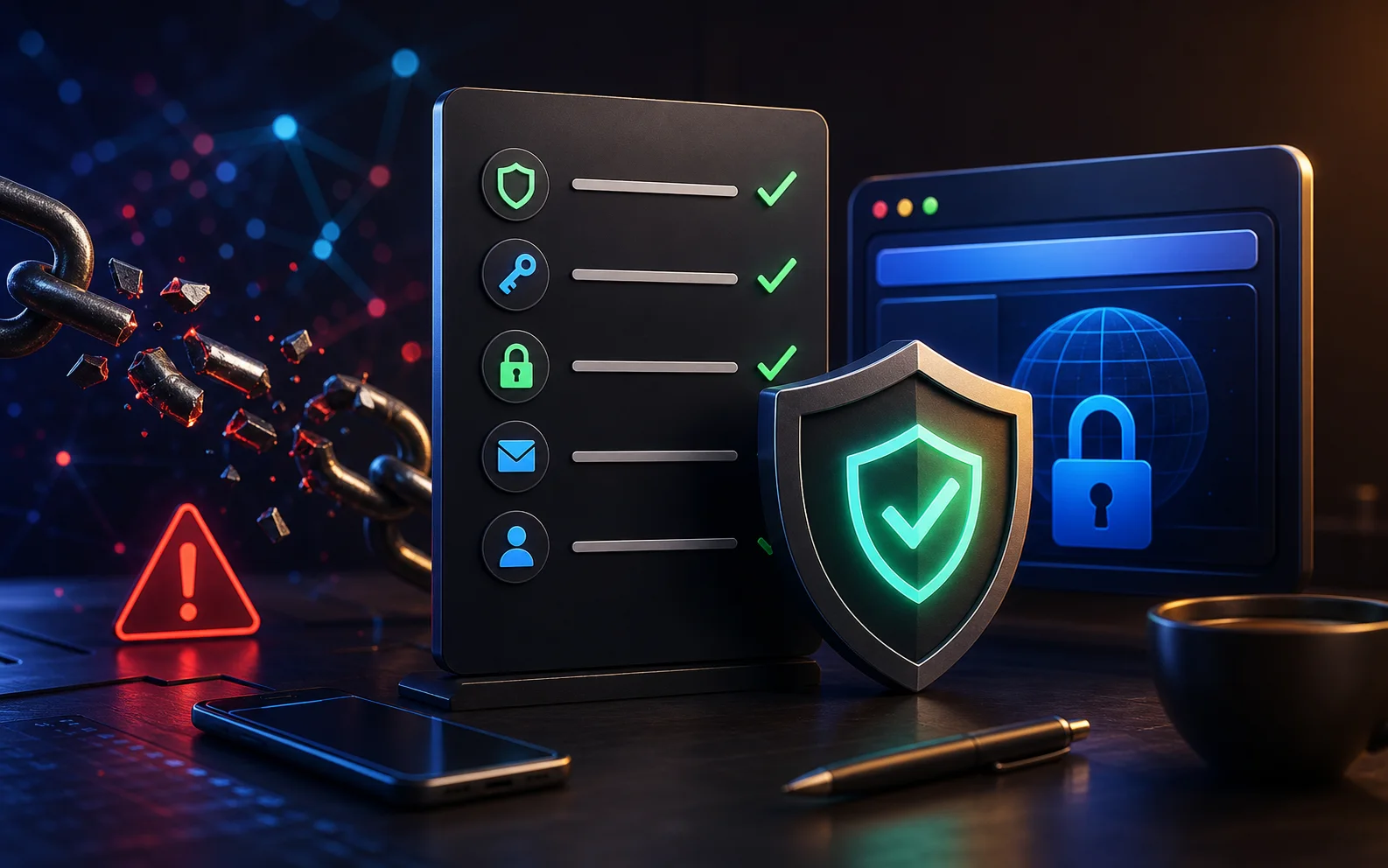
A pillar guide to securing your Google Account with Security Checkup, recovery options, passkeys, 2-Step Verification, connected apps, and activity review.
Last checked: May 19, 2026. Google account settings can change by region, account type, device, and workspace policy. Use Google's Security Checkup as the source of truth while following this checklist.
Quick answer
Open Google Security Checkup, review alerts, remove unknown devices, update recovery email and phone, turn on stronger sign-in protection, remove old third-party app access, and monitor security alerts.
Your Google Account may protect Gmail, YouTube, Android backups, Google Drive, Photos, saved passwords, Google Pay, business tools, and password resets for other services. Treat it as a primary identity account.
Why this account matters
If someone takes over your Google Account, they may be able to:
- Read or reset Gmail.
- Access Google Drive and Photos.
- Control YouTube channels.
- Reset passwords on other websites.
- See saved passwords if your browser sync is exposed.
- Access Android backups or location-related data.
- Abuse connected apps and third-party services.
That is why your Google Account should have stronger protection than a normal shopping or entertainment account.
Step 1: Run Google Security Checkup
Start with Google's official Security Checkup. It can show account-specific warnings, recent security activity, signed-in devices, third-party access, and recommended actions.
Do not ignore warnings about unfamiliar devices, suspicious activity, or recovery settings. If you see a device you do not recognize, sign it out and change your password if needed.
Step 2: Update recovery options
Recovery email and phone number help you regain access, but they can also become weak points if they are outdated.
Check:
- Recovery email.
- Recovery phone.
- Backup codes if available.
- Trusted devices.
- Old numbers you no longer control.
- Work or school recovery rules if this is not a personal account.
Remove recovery details you no longer control. Protect the recovery email with its own strong password and two-factor authentication.
Step 3: Strengthen sign-in
Use a unique password. If your password is reused anywhere else, replace it. A password manager can create and store a stronger password.
Then turn on stronger sign-in protection. Depending on account eligibility and device support, that may include:
- 2-Step Verification.
- Passkeys.
- Security keys.
- Google prompts.
- Backup codes stored safely.
Passkeys can reduce phishing risk on supported accounts and devices. Security keys can be useful for high-risk users, creators, business owners, and administrators.
Step 4: Review devices
Review every signed-in phone, laptop, tablet, browser session, TV, and old device. Remove anything you do not recognize or no longer use.
Be especially careful with:
- Sold or repaired phones.
- Shared family computers.
- Old office devices.
- Public computers.
- Devices from travel.
After removing a device, change your password if you suspect someone else had access.
Step 5: Review third-party app access
Third-party apps and services may have access to Google data. Some only need basic profile information. Others may request Gmail, Drive, Calendar, Contacts, or YouTube access.
Remove access for apps you do not use or do not recognize. Be stricter with apps that can read email, manage files, access contacts, or publish to YouTube.
If you are unsure why an app has access, remove it. You can reconnect later if you still need it.
Step 6: Check Gmail forwarding and filters
If Gmail is part of the account, check for suspicious forwarding addresses, filters, delegated access, and recovery messages. Attackers sometimes create hidden rules to copy email, hide alerts, or keep access after a password change.
Search for recent Google security emails, but do not click links from suspicious messages. Go to your account settings directly.
Step 7: Protect YouTube and creator assets
If your Google Account controls a YouTube channel, treat it like a business asset. Review channel managers, brand account permissions, connected tools, and suspicious uploads or comments.
Creators are often targeted with fake sponsorships, copyright notices, malware downloads, and account-verification scams. Never install software from a brand deal email unless you can verify the sender independently.
Step 8: Watch alerts after changes
After securing the account, monitor alerts for a few days. If you receive repeated login attempts, password reset messages, or recovery changes you did not make, act again quickly.
For business accounts, document what happened and involve the administrator.
Extra protection for high-risk users
Creators, journalists, founders, public figures, crypto users, and administrators should consider stronger controls such as passkeys, hardware security keys, separate admin accounts, and stricter third-party app reviews. If your Google Account controls income, audience, customer files, or business email, treat account security as business security.
FAQ
Is a passkey better than a password?
Passkeys can be more phishing resistant, but availability depends on your device and account. Use passkeys where available and keep recovery options secure.
Should I remove all third-party apps?
No. Remove apps you do not use, do not recognize, or do not trust. Keep only apps with a clear purpose.
What if I cannot access my account?
Use Google's official account recovery process. Do not pay random "recovery agents" in comments or direct messages.
Sources
- Google Security Checkup: myaccount.google.com/security-checkup
- Google Account Help: 2-Step Verification: support.google.com
- Google Account Help: passkeys: support.google.com
- Google Account Help: third-party access: support.google.com
Before you move on
Step-by-step recovery. Use this short checklist to turn the article into action.
- Start with the official app or account page, not a link from a message.
- Change exposed passwords and review active sessions.
- Save evidence if money, identity documents, or business accounts are involved.
This guide is written for practical user safety. For account, platform, or legal decisions, confirm critical steps with the official help center or your service provider.